To understand what each of the buttons on your phones, click on the hotspots on the image.
Your Circle of Care PSW Phone
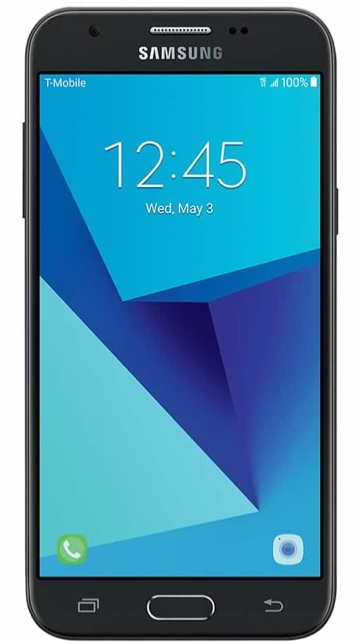
The Long Button: Is the VOLUME – Pressing UP turns the volume up, Pressing DOWN turns the volume down, Pressing ALL THE WAY DOWN turns on the vibrate
The Small Button: Touching this button locks your phone. Holding it down gives you the option to turn your phone ON & OFF
Back Button: Brings you back to the previous screen
Home Button: Will bring you back to the home screen
Open Apps: Show a list of all of the open apps
Charging Port: Found at the buttom of the phone
Unlocking your phone
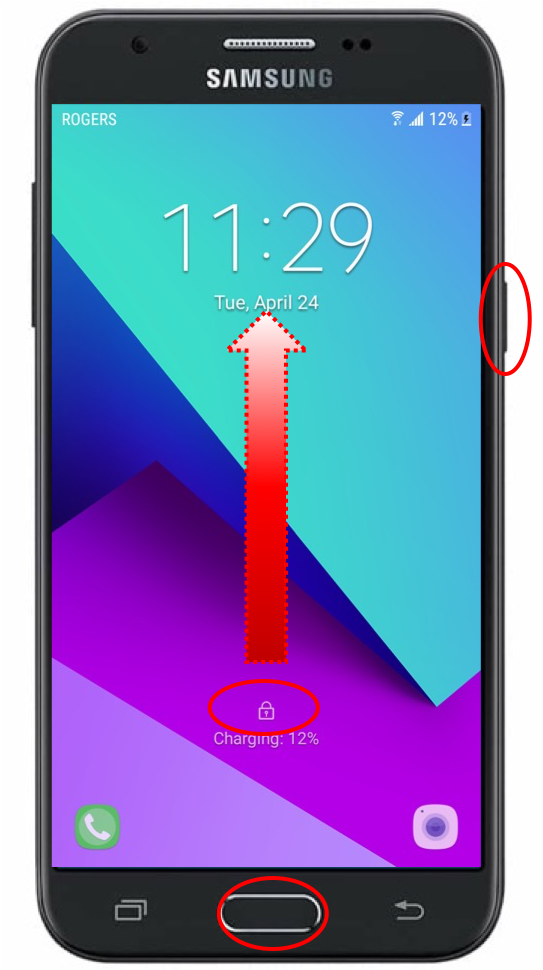
- Press the little button on the right, or the middle home button to turn the screen on
- Locate the lock icon at the bottom of the phone screen
- Place your finger on the icon and “swipe up”
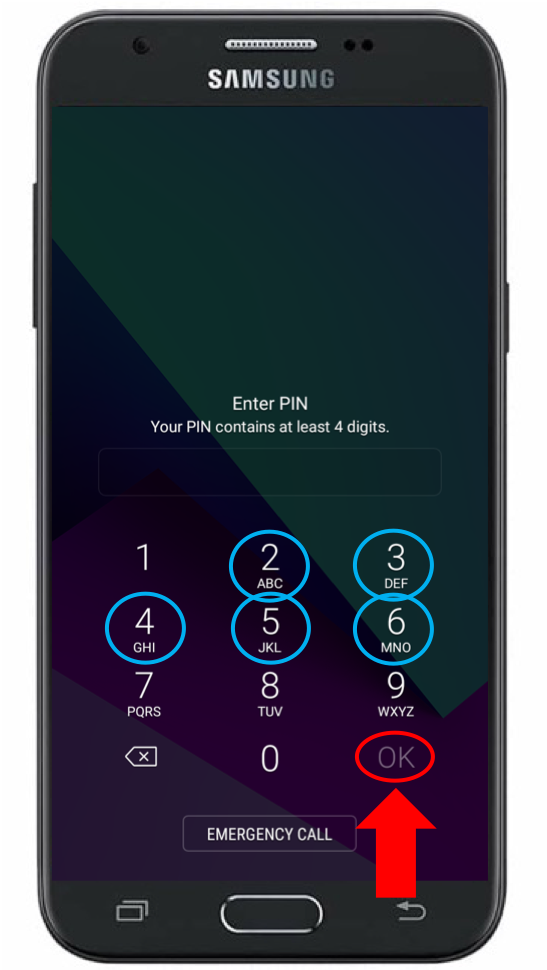
- There will be a three-digit PSW number on either your phone box or the phone itself
- On the keypad press “42” and then the PSW number
- After entering all five digits, you will press the checkmark – you will do this every time you need to unlock your phone
Available Apps
You can slide your finger down to view all the available applications. The most common one will be EZ Exalt, also sometimes called the PSW App. This is where you will find your schedule, your access to the PSW Portal, the Message Center, and more.
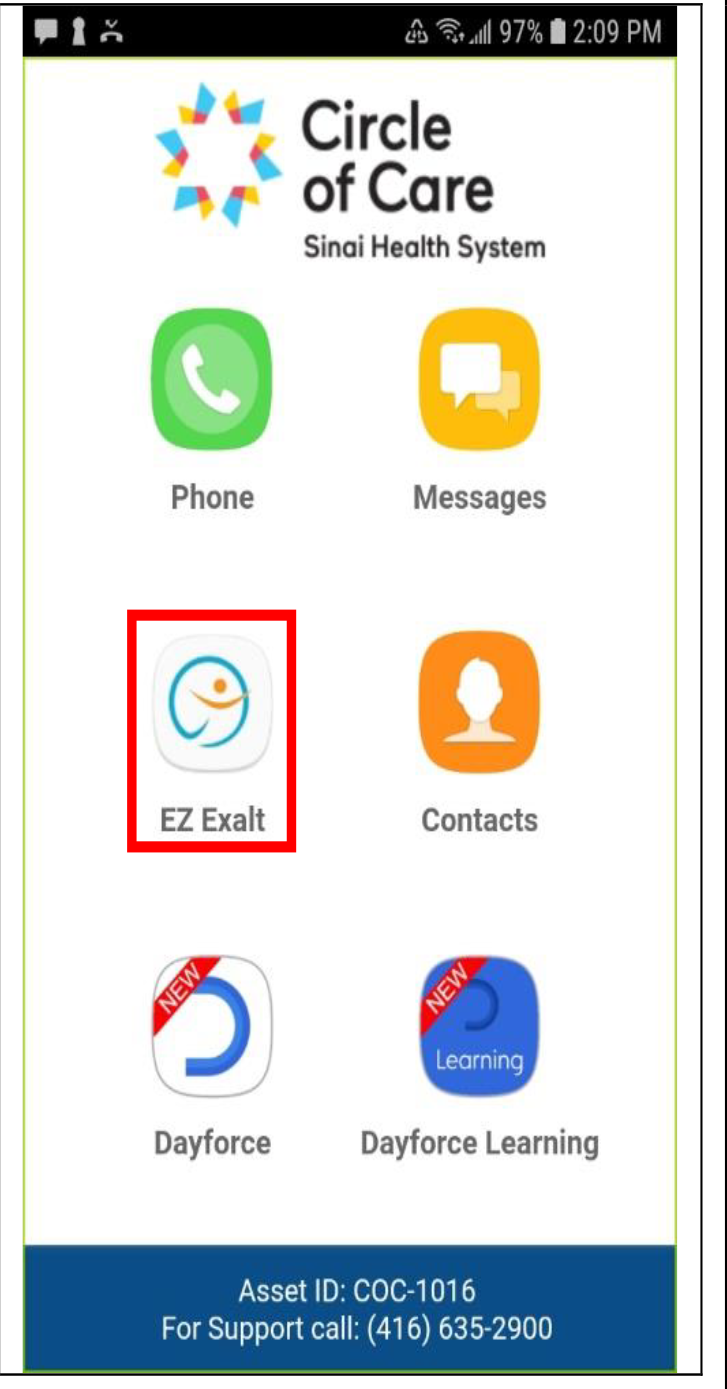
Phone: Allows you to make calls.
Contacts: Allows you to view the contacts that have been saved in your phone.
Messages: Allows you to send text messages
Maps: Provides you with maps and directions to locations
EZ Exalt: The PSW Mobile App
Dayforce: Our learning platform where you can find online modules and required training, as well as the Payroll platform, where you can find your paystubs and T4s.
Google Translate: A translation app that you can use to help you communicate with your clients.
Camera: Opens the phone’s camera
Gallery: Allows you to view photos that you have taken.
Calendar: Opens the calendar app.
Calculator: Opens the calculator app.
Clock: Allows you to use the stopwatch or set timers.
Settings: Allows you to change the phone settings for the display, sound, wifi, and bluetooth.
How to Answer Calls
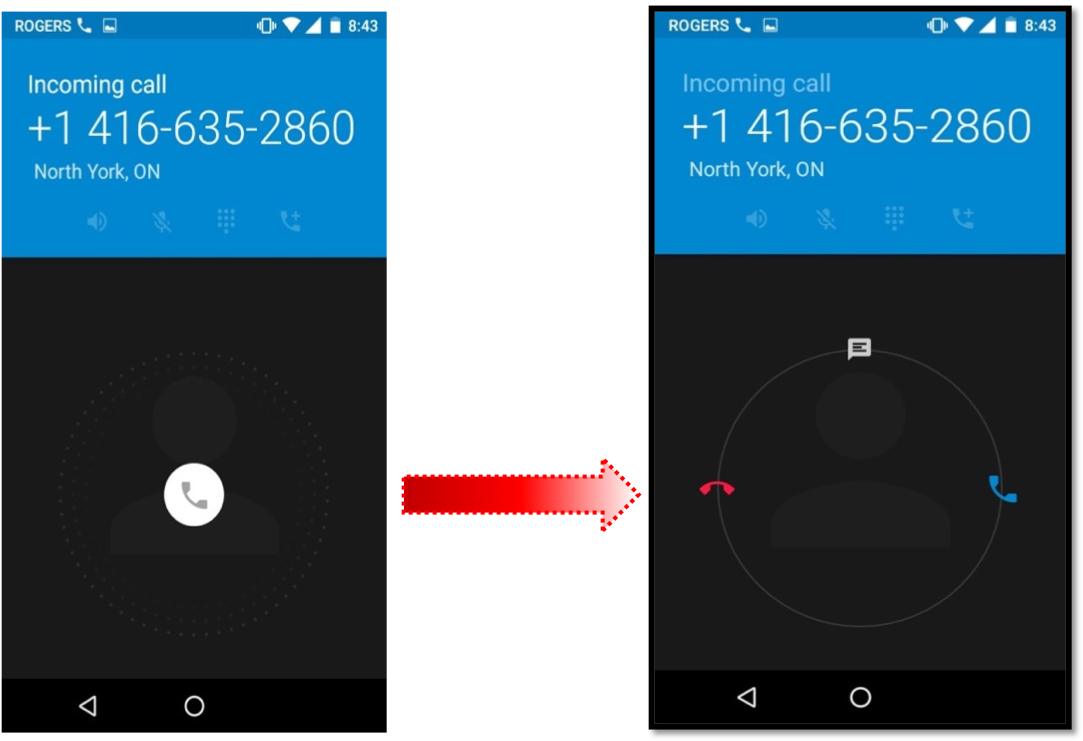
This is what an incoming call looks like. To answer, swipe right.
When you have successfully answered the call, your screen will change.
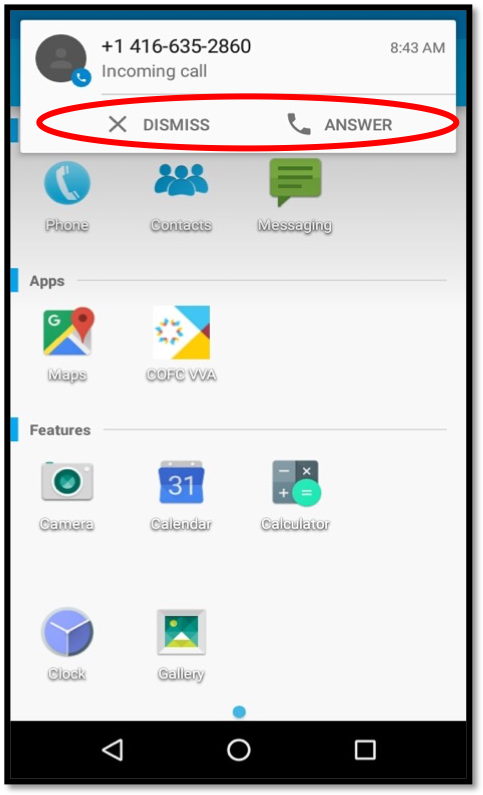
This is what an incoming call looks like when you are on your phone either doing something or speaking to someone. To answer, press ‘answer’ or to not accept the call, press ‘decline.’
How To Make Calls
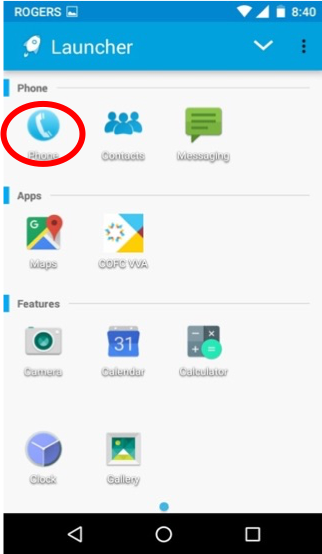
In the launcher screen “Tap” the phone icon
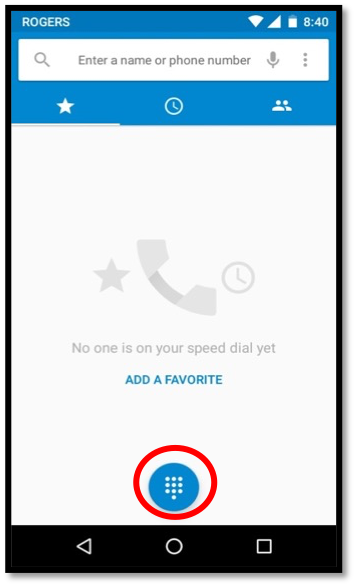
By pressing the symbol with the dots, this will bring up the number pad
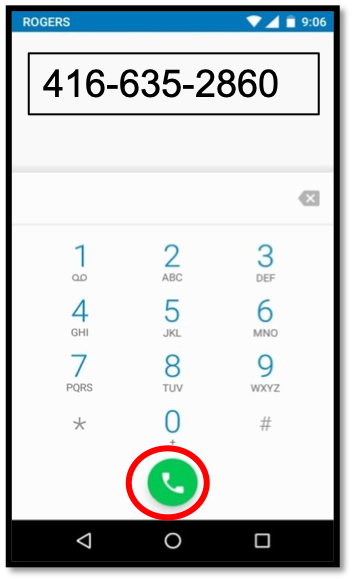
Type in your phone number then Press the green dial icon
Troubleshooting Your Phone
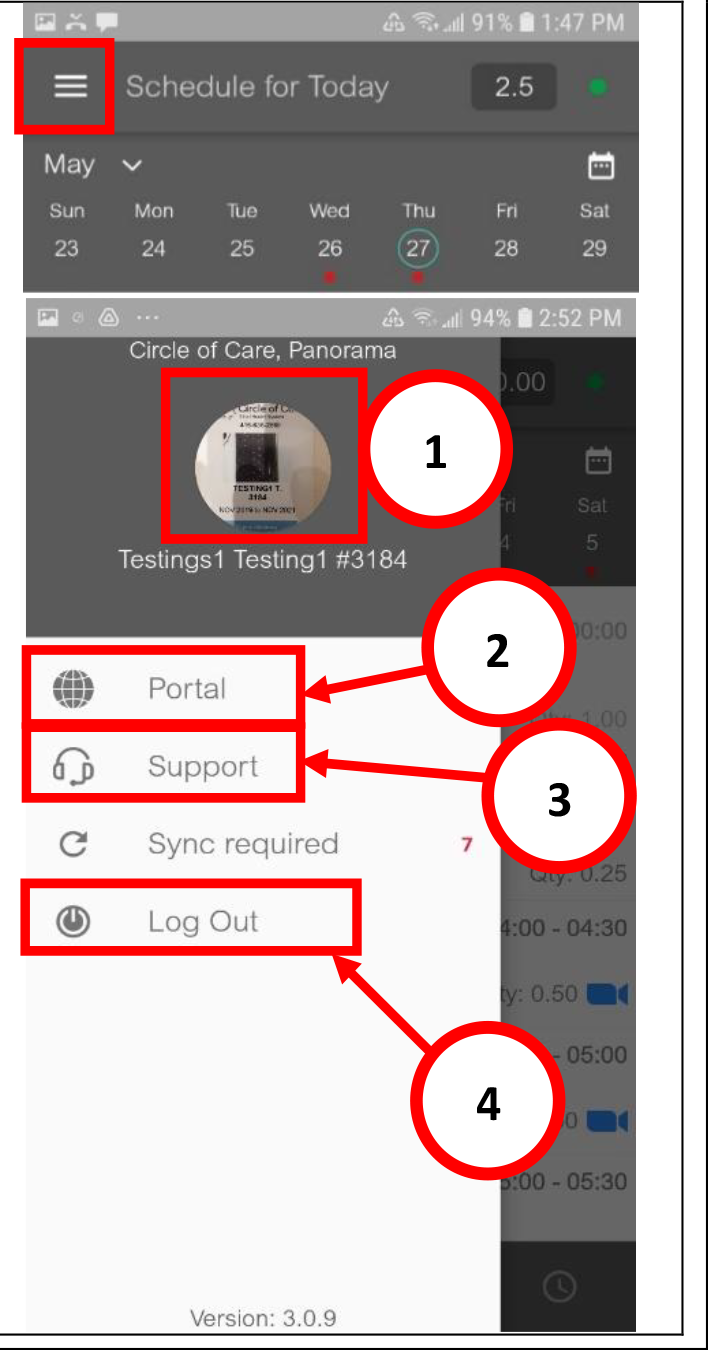
If you have any issues, please contact Support. Go into your EZ Exalt app and press the #3 button as indicated in the picture (Support).
Note: If you are required to bring your phone in, please make sure there is at least a 50% charge on your phone.