Open the App
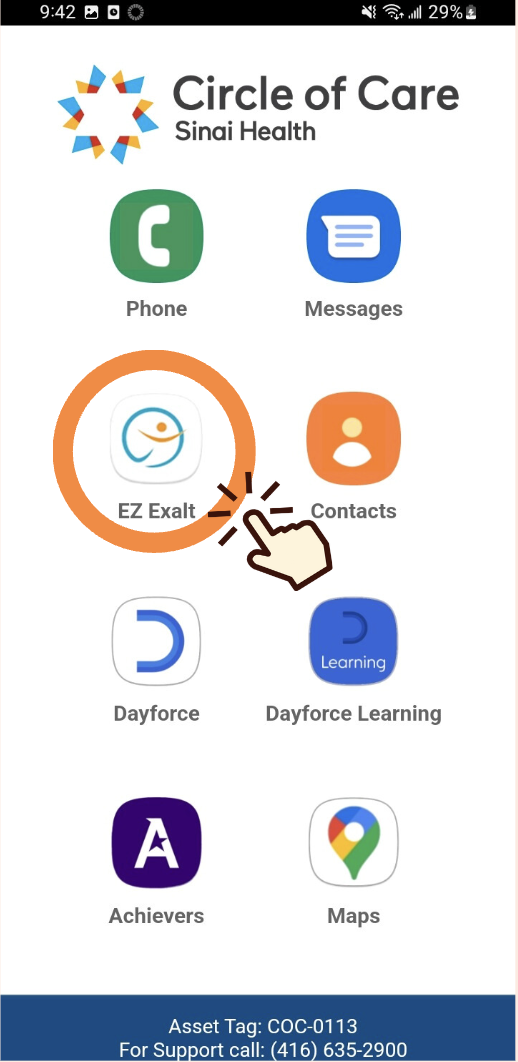
Open the PSW Mobile App, EZ Exalt.
Open the PSW Mobile App, EZ Exalt.
Tap on the camera icon at the bottom right to open up the camera.
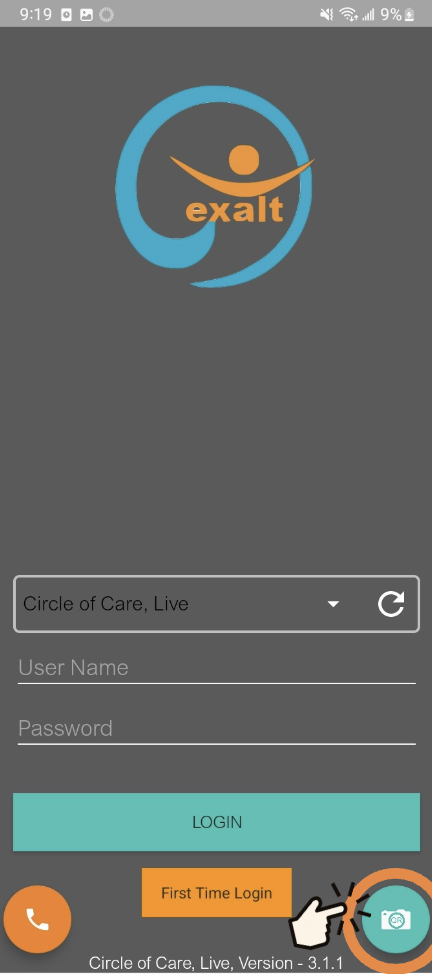
Point the camera to the QR code on the back of your ID badge and hold steady for a few seconds to scan the code.
Once successfully scanned, you will automatically enter the app.

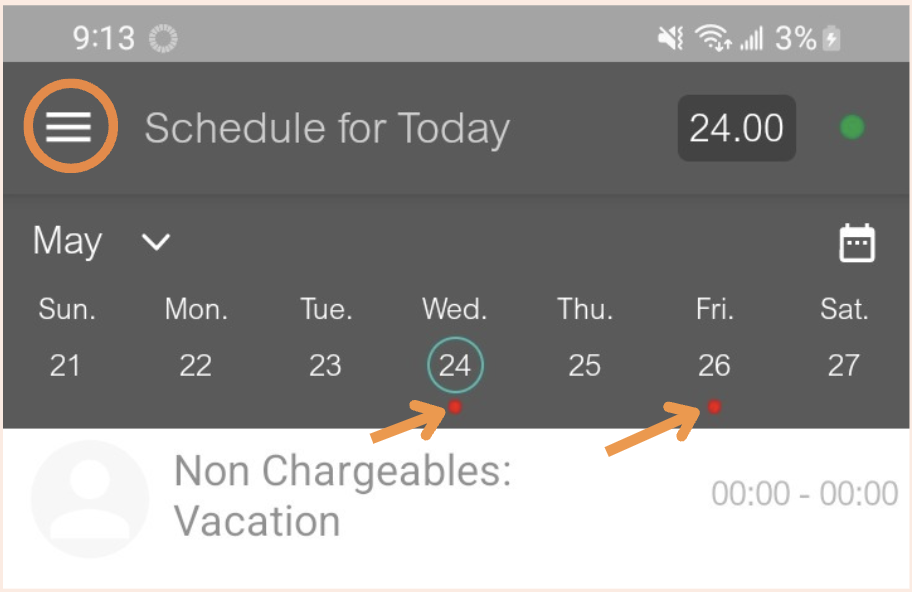
The three-line icon on the upper left opens the side menu.
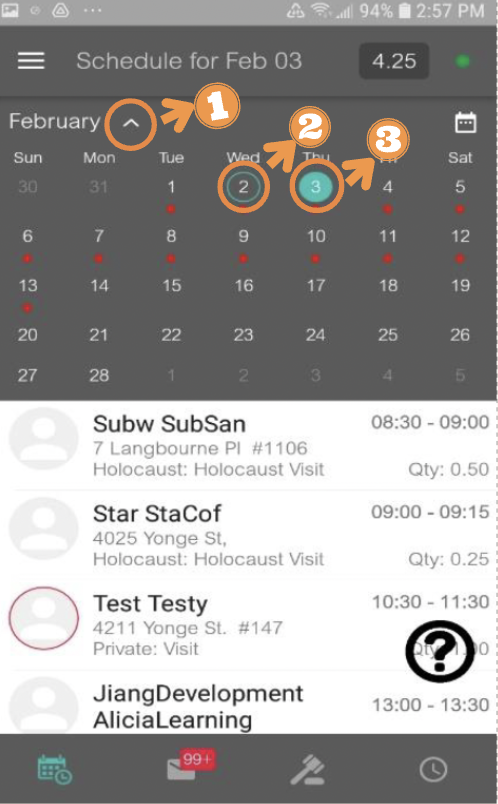
The Red Dot under the date indicates there is a scheduled visit for that date.
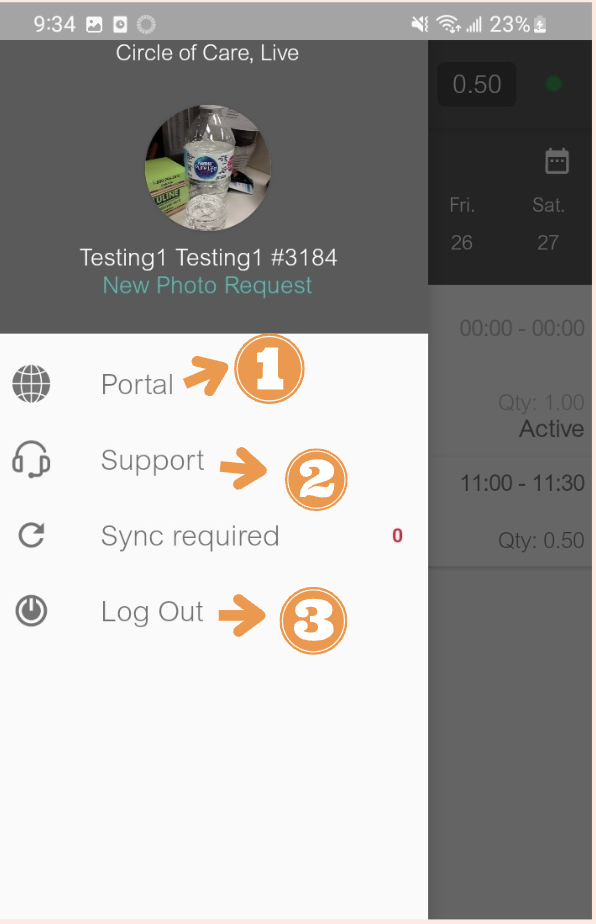
The side menu offers the following options:
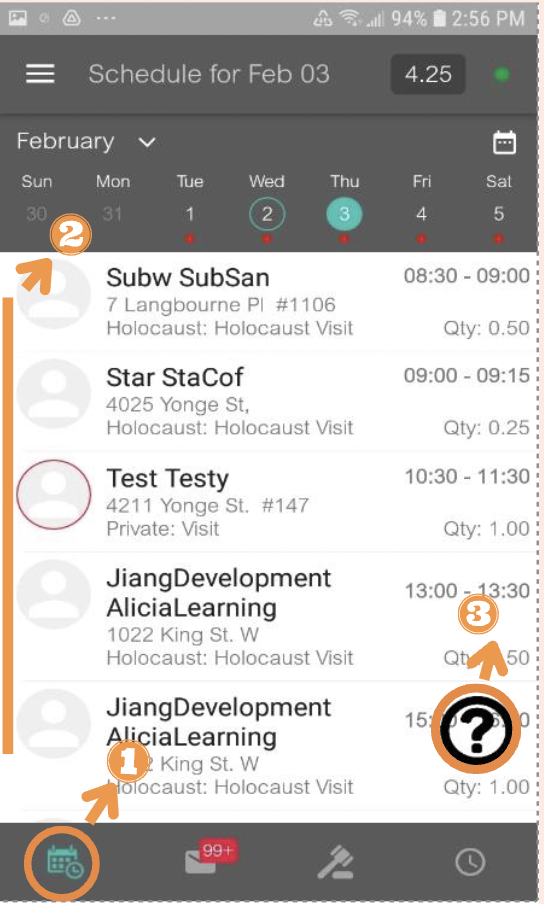
The schedule center is the first page you see when open the app.
1. Schedule Center Icon: allows you to access the Schedule Center
2. Scheduled Visit List: any visits scheduled for the selected day
3. WalkMe: a self-learning tool that provides you with live guidance to complete tasks on your phone
The Client Tile
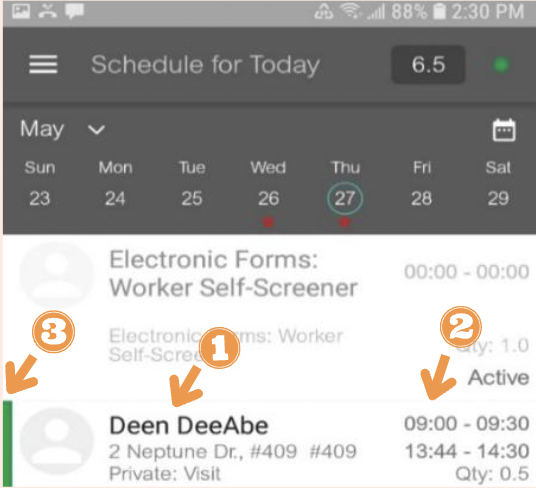
Client Information
When tapping directly on a client information tile, client details will be provided.
This screen provides you with the client’s information including:
Keep in mind that this screen is only available five days prior to the scheduled visit time to protect client’s privacy. Alerts and Notes and Client Screener are only available on the same day of the visit.
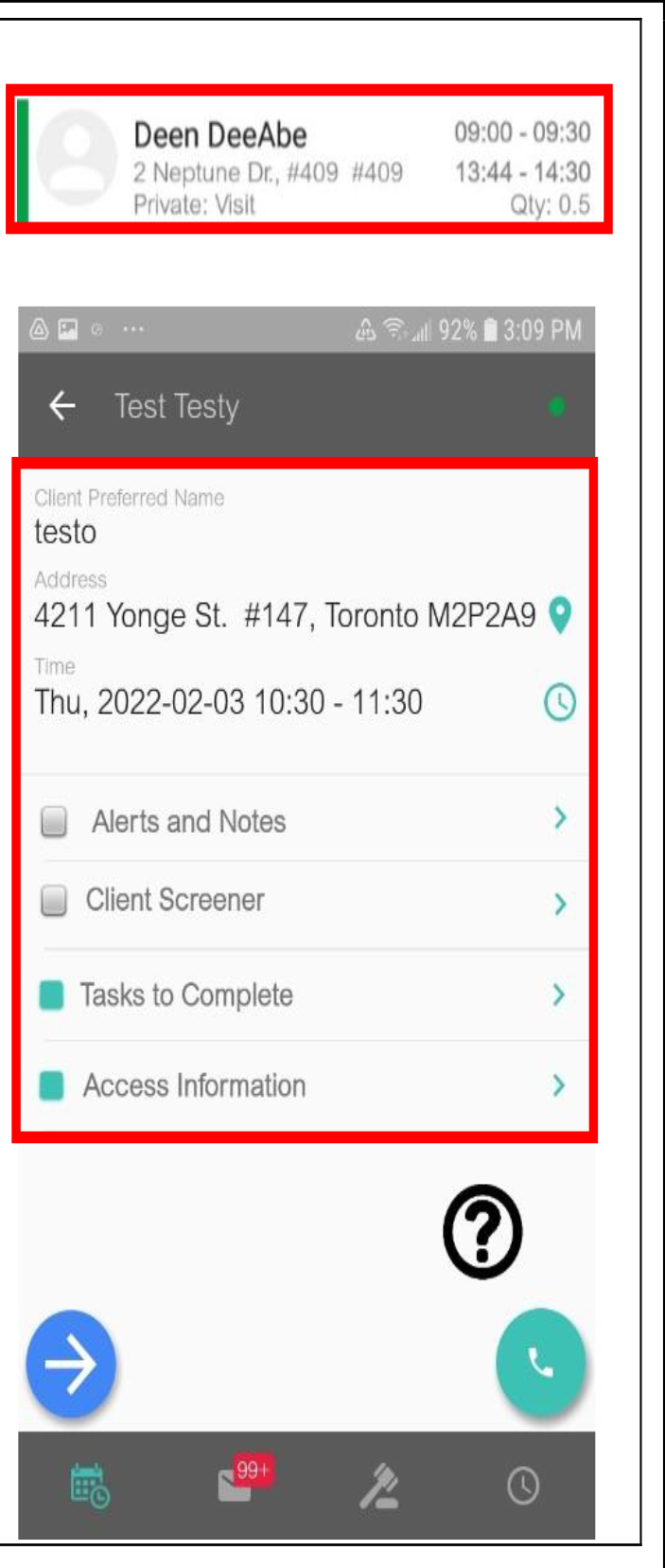
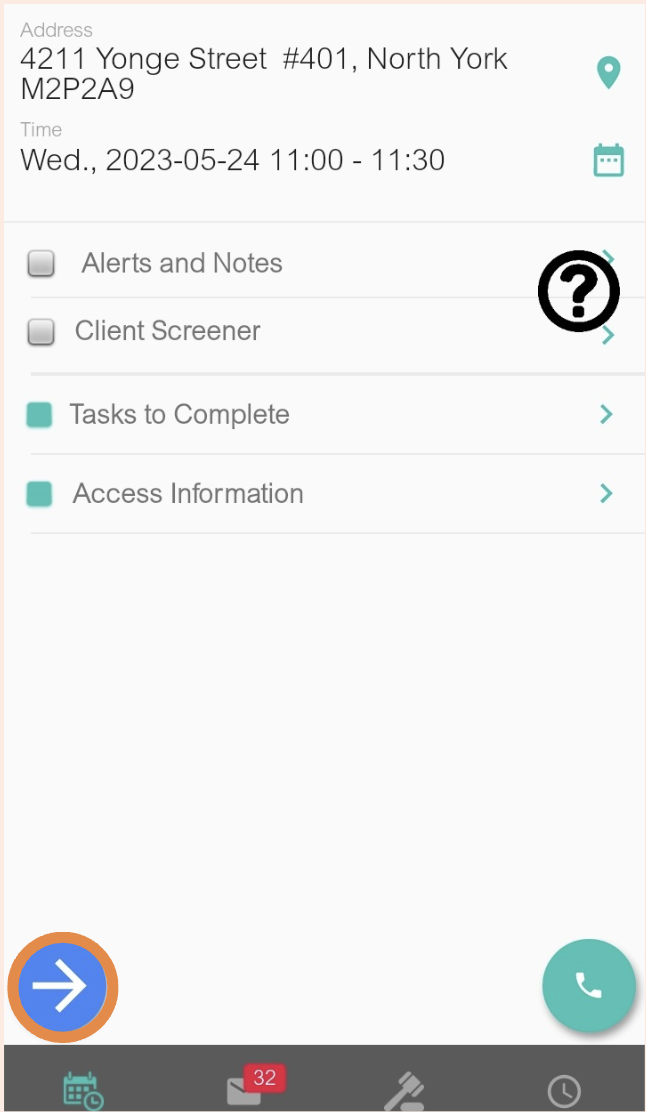
Tap the blue arrow icon to start checking in.
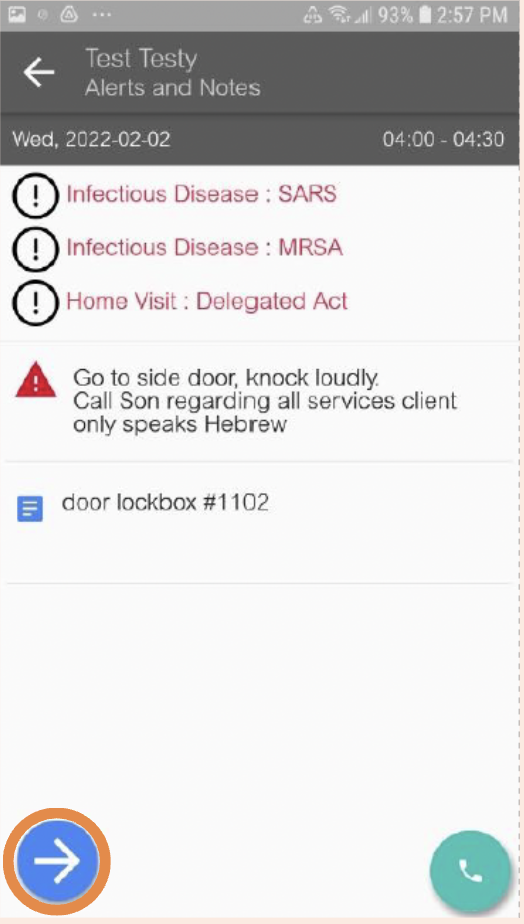
If the client has alerts or notes, the first screen will show you all of the alerts and notes on file. If there is none, this screen will not appear.
Tap the blue arrow button to move on.
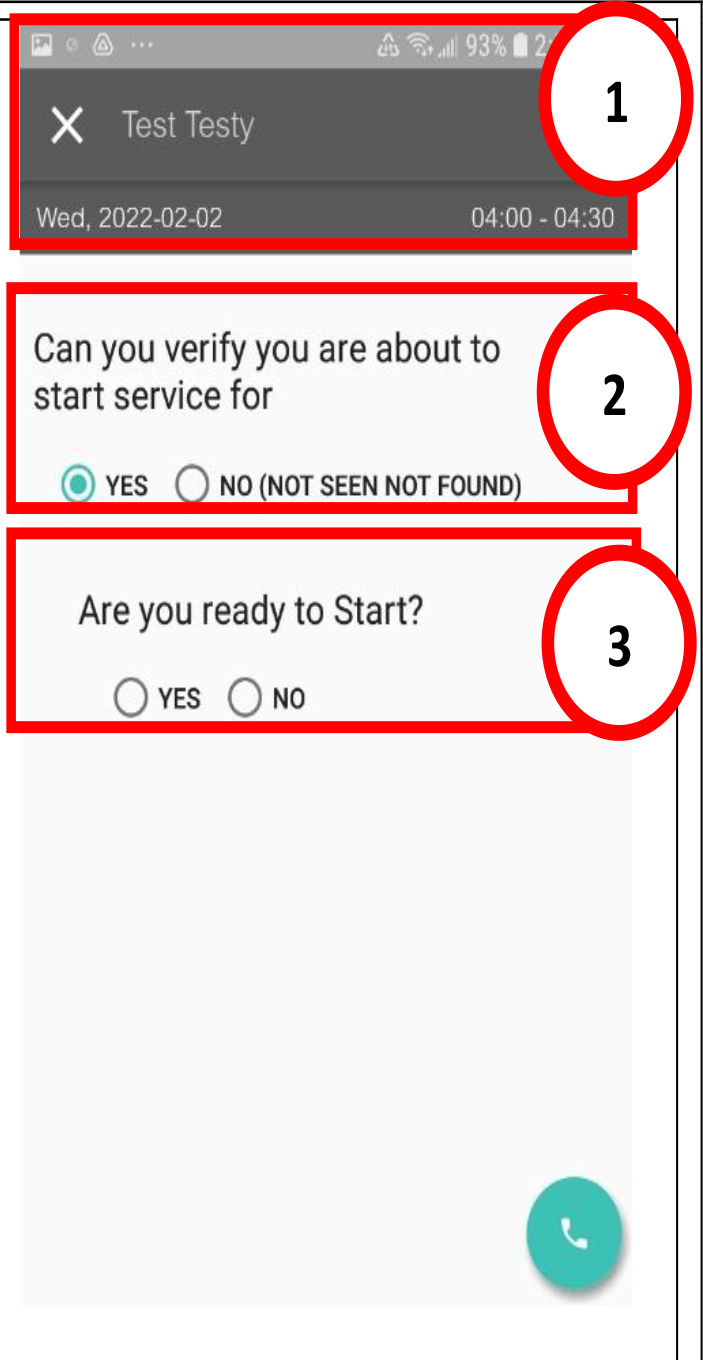
(1) This screen provides you with the client name, current date, and scheduled visit time
(2) Question 1: Can you verify you are about to start service?
Select “Yes” to confirm you’re about to start the service for this client.
(3) Question 2: Are you ready to start?
Select “Yes” to confirm you’re ready to start, this means that you can physically see the client.
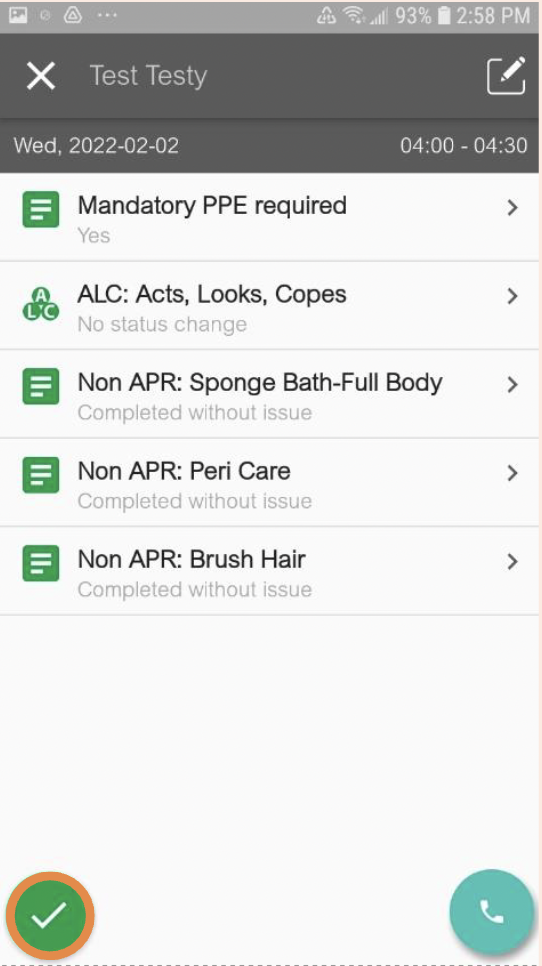
The screen will show all of the required tasks for the visit. To complete a task, tap on its name.
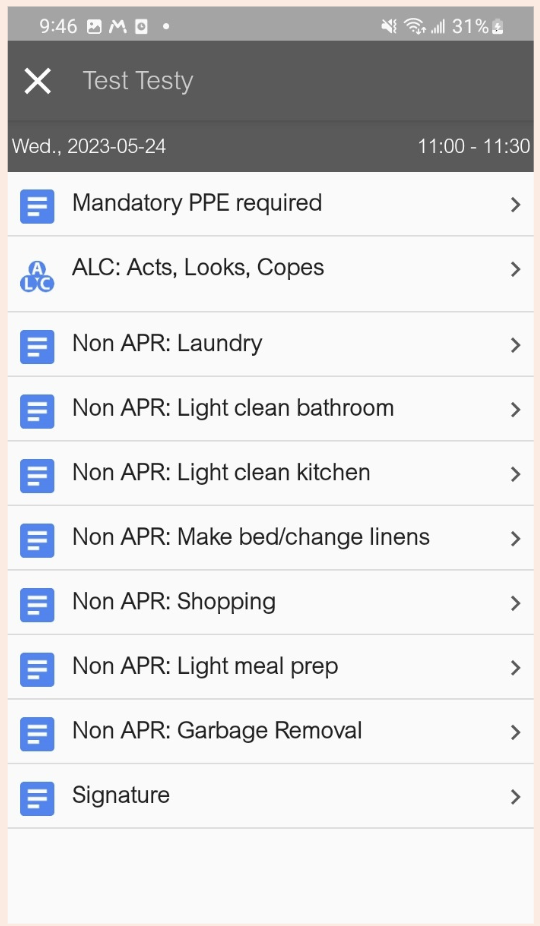
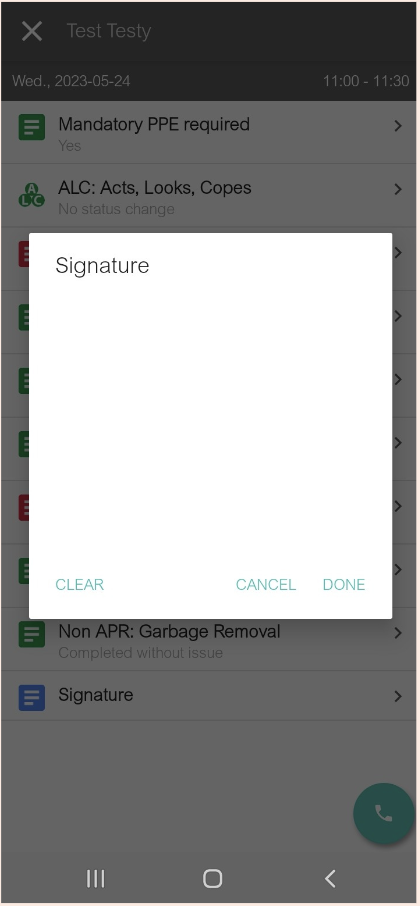
For clients requiring identity verification, a “Signature” task will be included in their Care Plan. Clients will need to sign using their finger for two-factor authentication. If a client has limited mobility, CSS will provide visit notes with signature instructions.
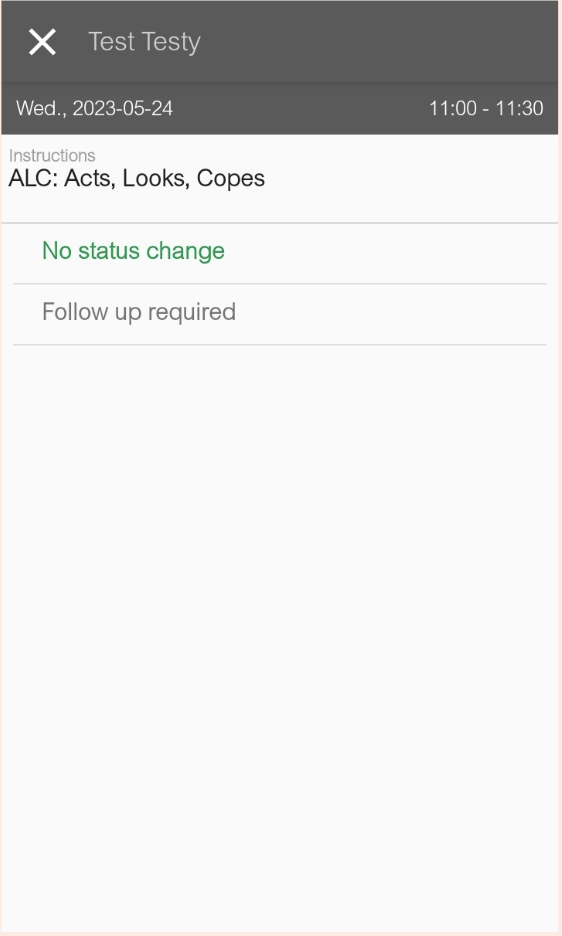
When you click on one of the tasks, you’ll be presented with a list of responses that you can select. To proceed to the next task, you must select the appropriate response from the presented list. As an example, the ALC checklist task has two possible responses for you to choose from. If you choose “Follow up required”, a comment screen will allow you to include additional comments.
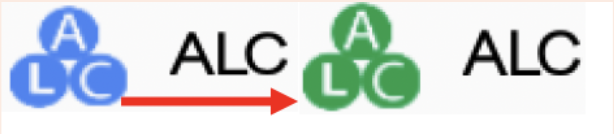
When a task is completed, its icon will change colour.
Once all tasks have been completed (all icons are red or green), a checkmark button will appear on the bottom left allowing you to successfully check out.
You will be brought back to the main page after pressing it.
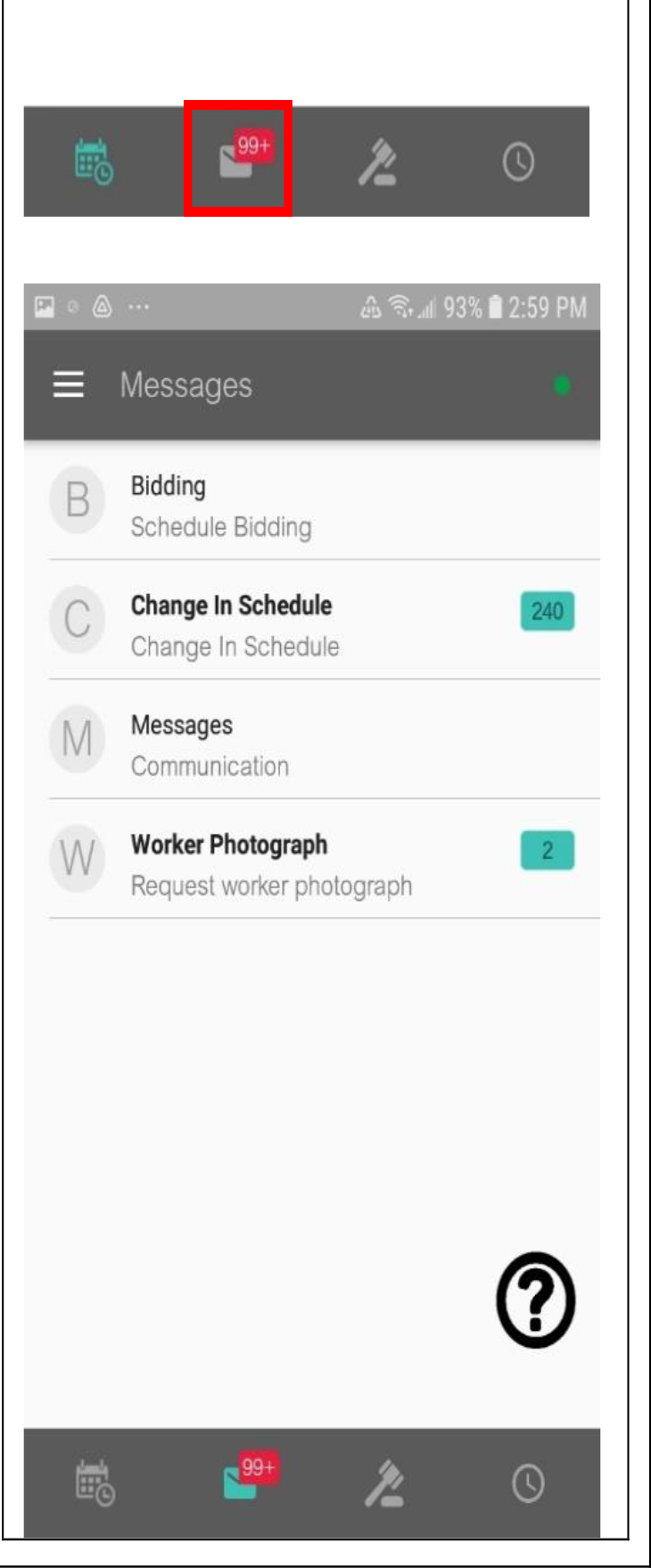
The envelope icon opens the Message Center.
You will be able to see messages from the Circle of Care team. These messages have been organized into different categories. When you have a new message, you will see a rectangle with a number in it on the envelope icon.
To open messages, tap on the correct category then select the message you would like to view.
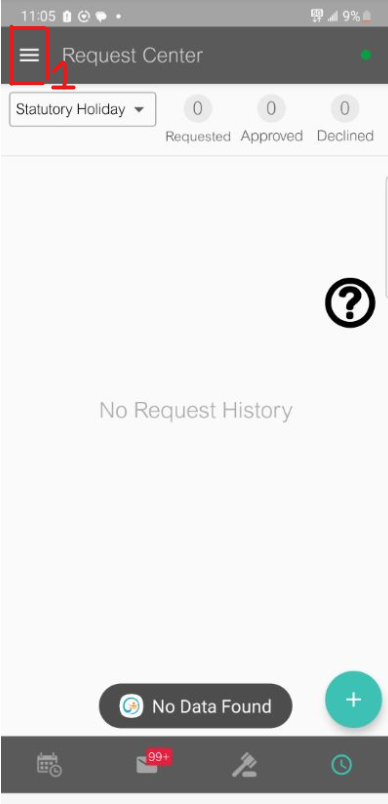
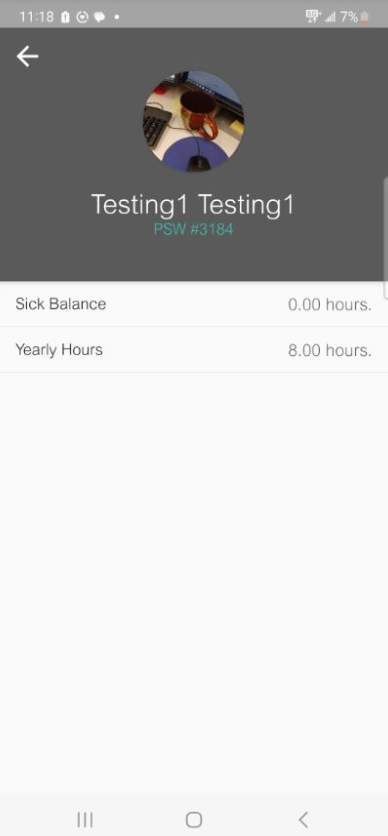
2. Click on your picture icon.
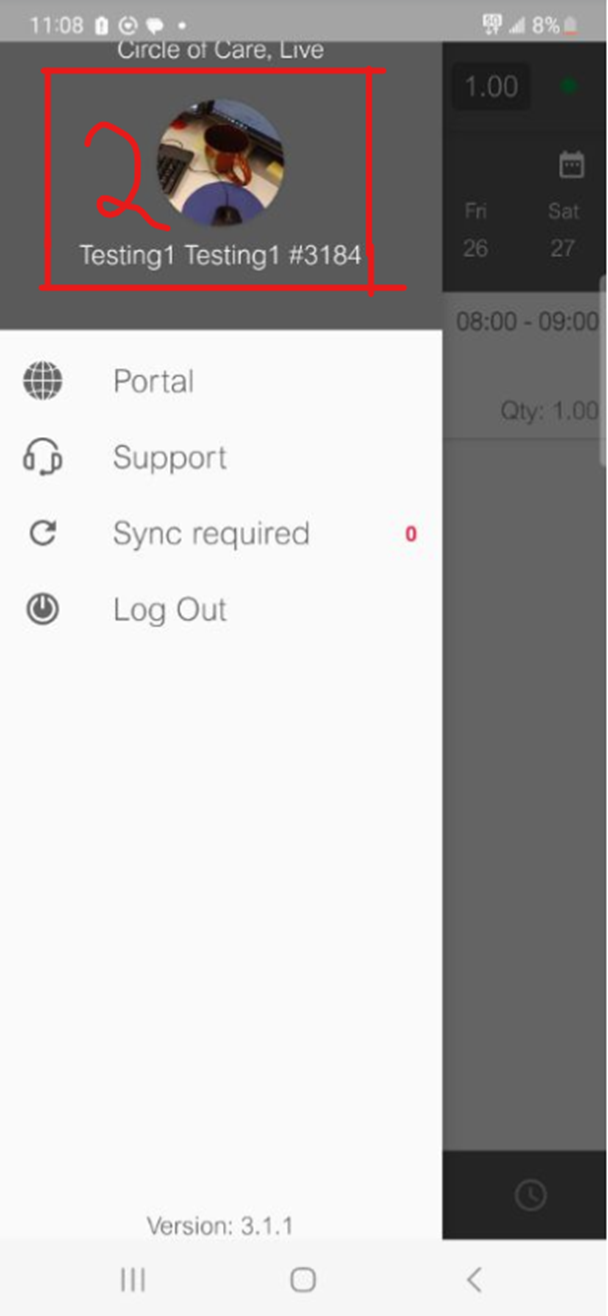
3. After clicking your picture, you should be able to see your sick balance and your yearly hours balance.