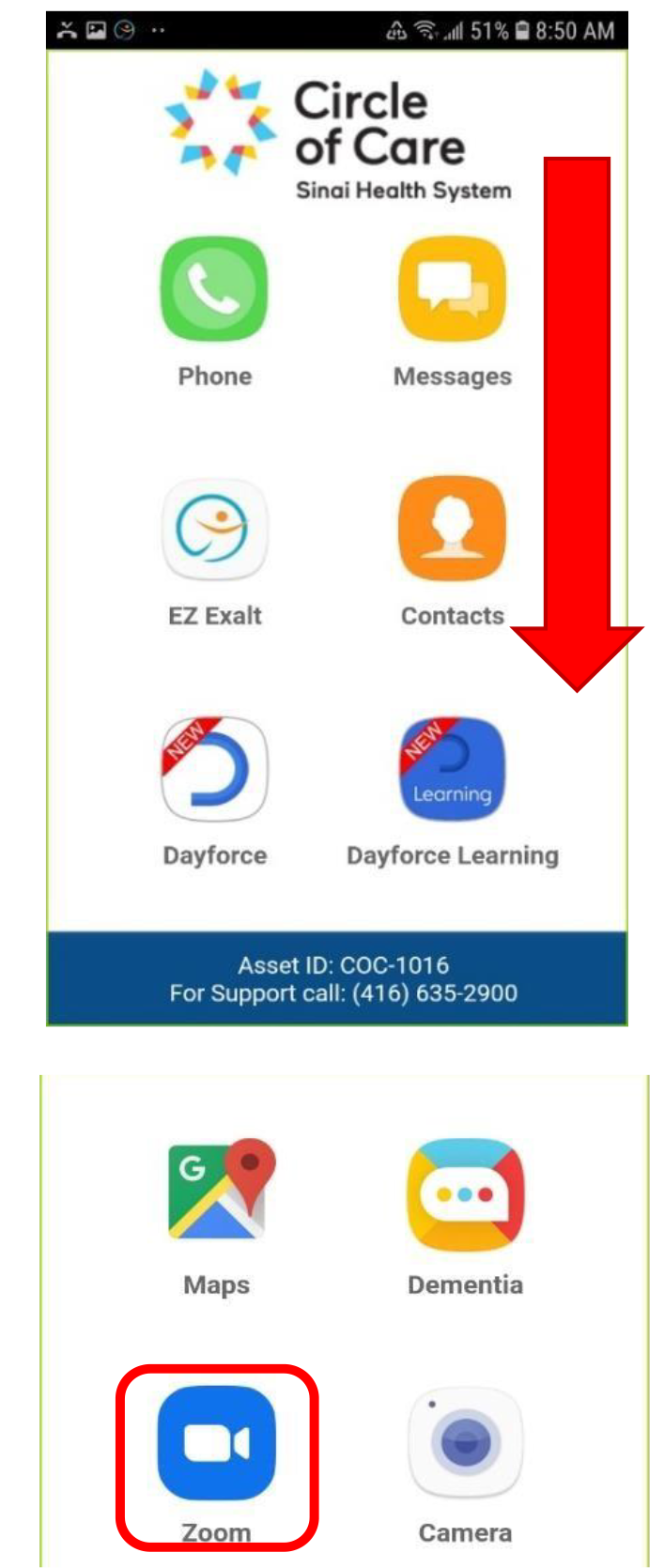
Scroll down on the home screen to find the ZOOM application icon – tap on it.
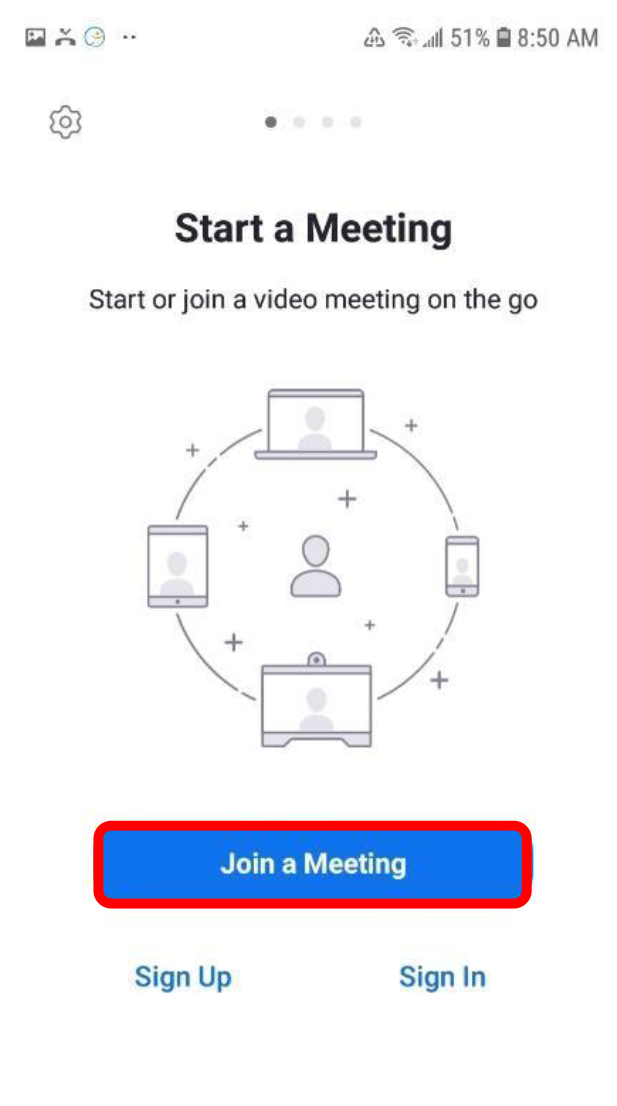
Click on “Join a Meeting.”
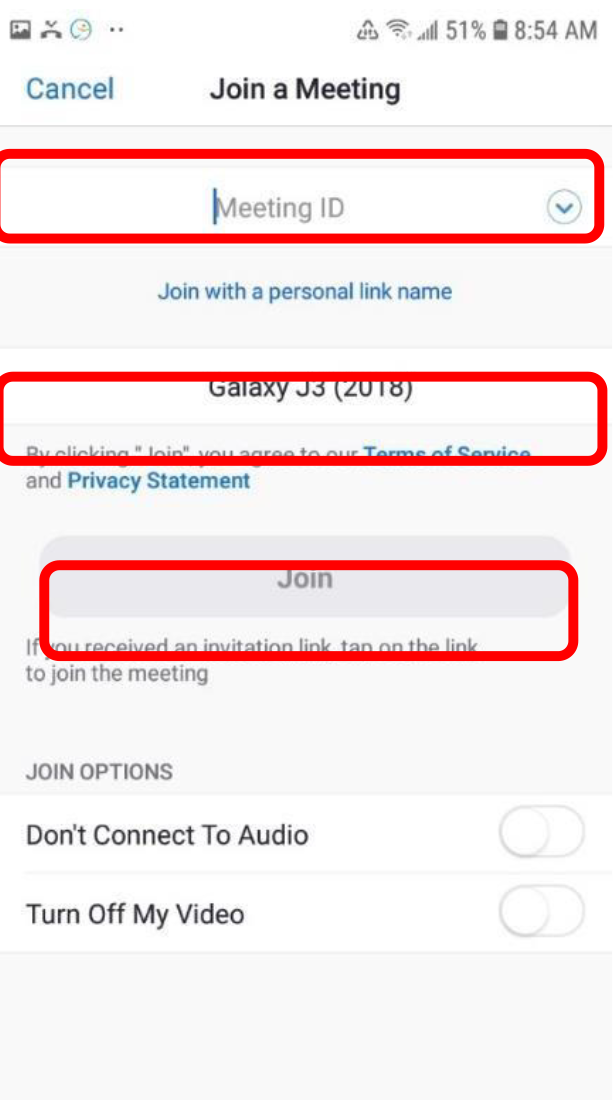
Enter the meeting ID in the top field.
The field below “Galaxy J3” is the pre-set name, press on it to change it to your name. Once entered, press the “Join” button.
Then you will be asked to enter the passcode for the meeting. Type it in.
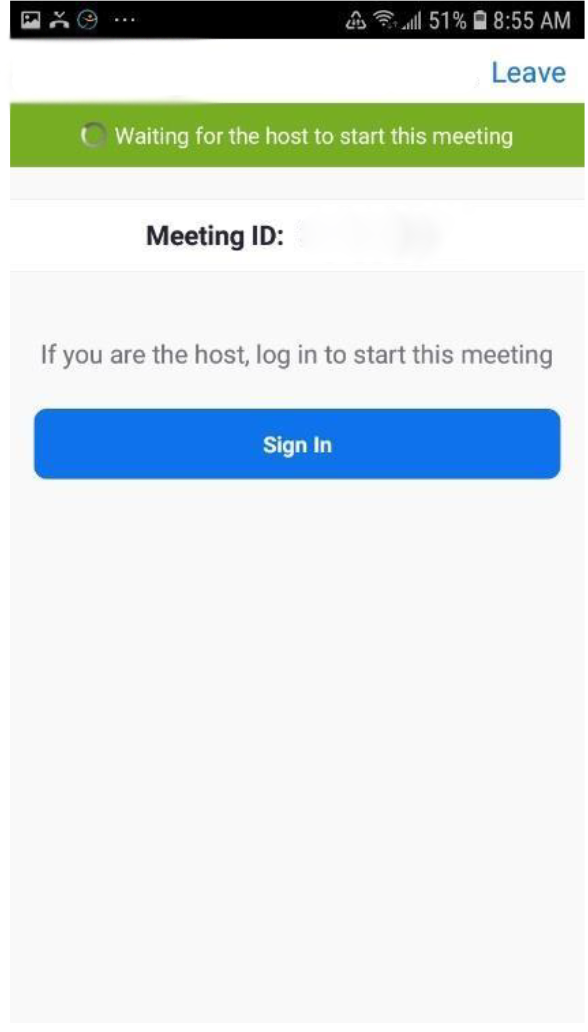
Depending on the settings of the meeting, you may see this screen when waiting for the host to let you in.
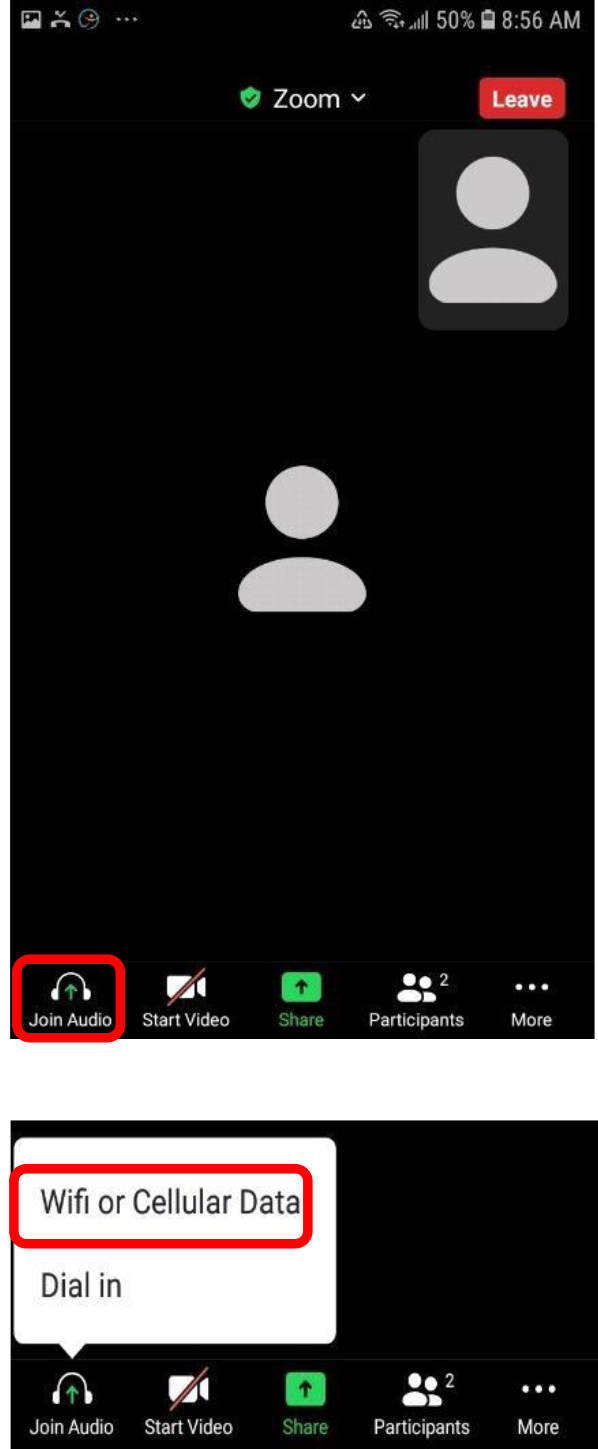
After enter the meeting room, tap on “Join Audio” then choose “Wifi or Cellular Data” to connect to the audio (sound).
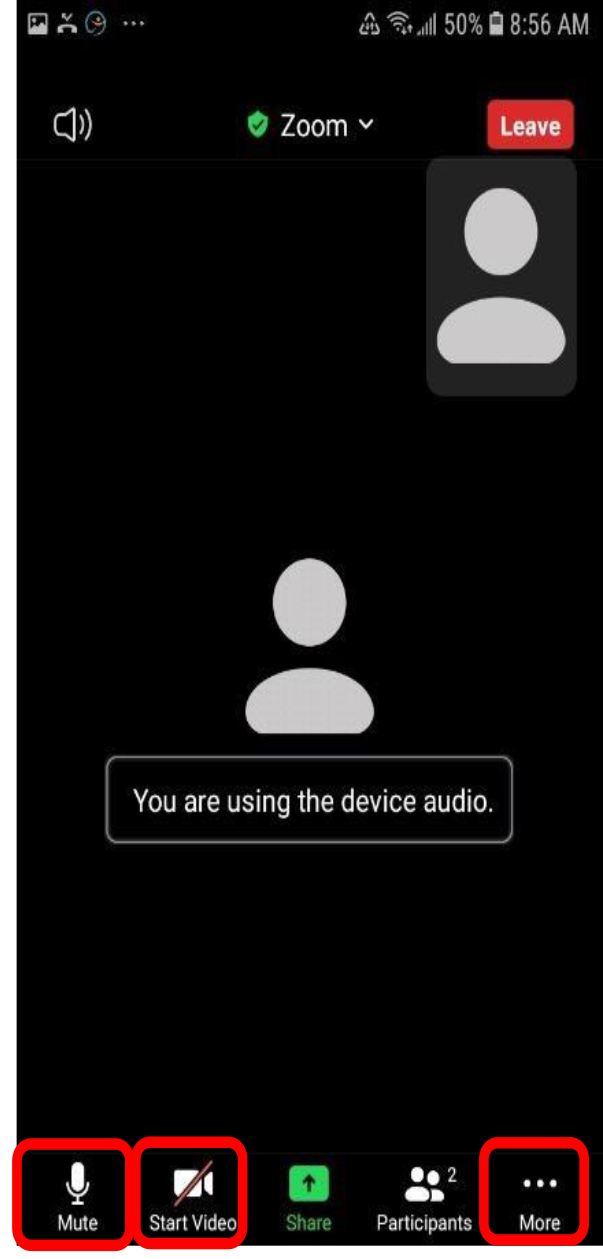
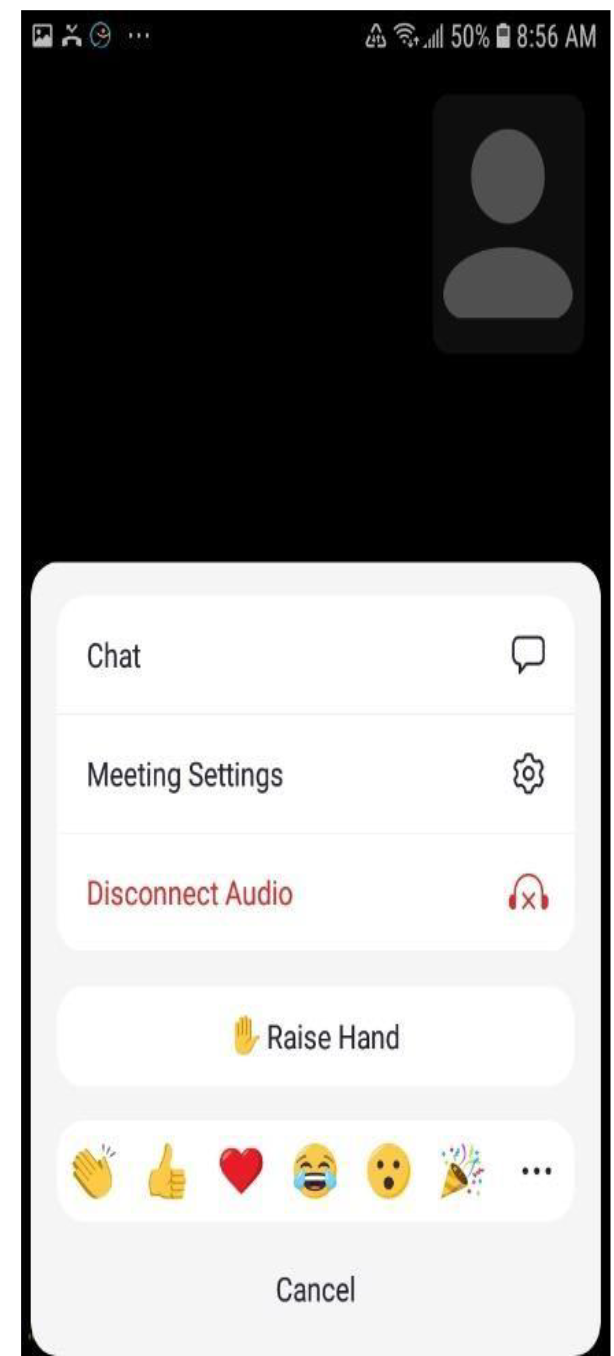
The microphone icon allows you to mute and unmute yourself; the camera icon allows you to turn on and off your camera; the three-dot icon to the right opens up more options including access chat messages, change meeting settings and raise hand.